
Automatic Condition Monitoring on ThingWorx: Machine Alarms Linked to Product Limits
By PSPTechHub ·
Summary
Automatic condition monitoring means software watches machine readings such as temperature, pressure or vibration all the time and warns the team when a reading goes outside its allowed range. PSPTechHub worked on ACM, a ThingWorx app that reads machine data from plant historians (Wonderware, Proficy, Perf and InfluxDB), compares it with the right limits for the product being run, raises an alarm when a limit is crossed and shows the team which actions to take. A summary email of the previous day's alarms goes out every morning at 08:00.
The Problem: Plant Data Was Spread Across Too Many Systems
Machines record thousands of readings every shift, but those readings sat in historians that nobody watched in real time. Problems were often found only after a stop or a quality defect.
Nobody watching the data
Temperature, pressure and vibration readings were stored but not checked as they happened.
Limits change with the product
A setting that is right for one product can be wrong for another, so one fixed limit per machine wasn't enough.
False alarms at start-up
Readings taken while a machine is starting up look out of range and create noise.
No clear next step
When a reading was wrong, there was no standard list of what to check or fix first.
Several historian types
Different lines stored their data in different historians, so one tool had to read them all.
The Solution: Dashboards Each Site Builds Itself
ACM turns stored machine readings into alarms the team can act on. Each reading is compared with the limits for the product running at that moment, and every alarm comes with suggested actions.
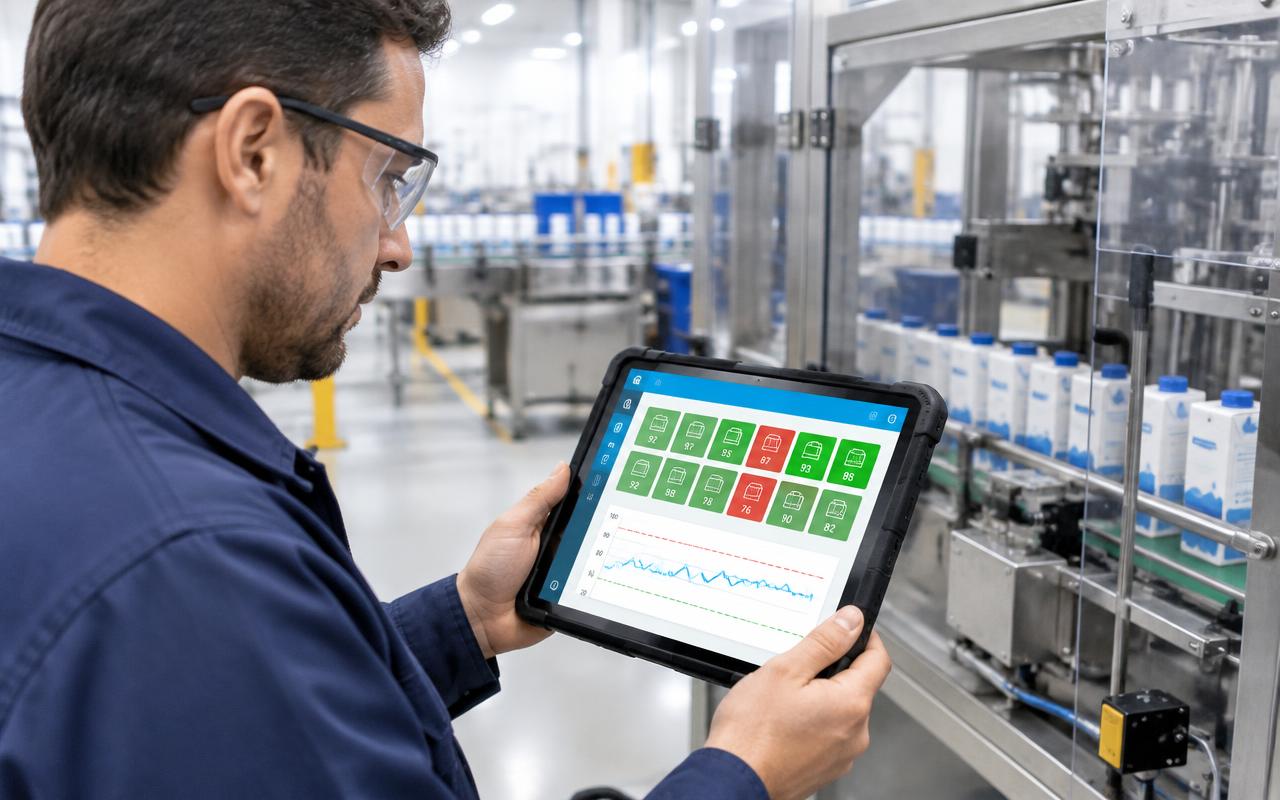
Plant overview in red and green
Every machine shows green when it's fine and red with an alarm count when it isn't; one click shows the details.
Limits per product
Each reading has its own low and high limits, warning levels and target value for every product.
Knows what's running
A running signal and a product signal tell ACM if the machine is on and which product it is making.
Start-up delay
A wait time after start-up stops false alarms while the machine settles.
Guided fix actions
Each high or low alarm is linked to up to four actions, such as replace filter or restart machine.
Acknowledge and complete
Teams acknowledge an alarm, tick the actions taken, add notes and mark it completed; repeats of the same alarm are grouped.
Trends with limit lines
See a reading's history with its limits drawn on the chart, filtered by product, for up to four readings at once.
Daily alarm email
Users subscribe in Preferences to a summary of the previous day's alarms, sent every morning at 08:00.
Bulk setup from spreadsheets
Tags, machines, readings, limits and actions can be uploaded from CSV templates that are checked before saving.
How It Works: From Data Source to Morning Meeting
- 1
Connect the historians
One or more Wonderware, Proficy, Perf or InfluxDB historians are added in the admin area.
- 2
Describe the plant
Departments, lines, machines and machine parts are set up, by hand or by spreadsheet upload.
- 3
Set the limits
For each reading and product, the team enters the low and high limits, warning levels and target.
- 4
Link the actions
Each high or low alarm is linked to the actions that usually fix it.
- 5
Monitor automatically
ACM reads the data on a schedule, checks it against the limits and raises alarms.
- 6
Act and close
The team sees the red machine, opens the alarm, takes the actions, adds a note and marks it complete.
For IT Teams: How It Is Built
ThingWorx holds the screens, settings and cached data; each source system stays the official record for its own data.
- ACM screensSummary Viewer, Alarm Actions, Equipment Analytics, Parameter View, Alarms by Equipment, Preferences
- Admin suiteSet up historians, tags, readings, products, plant structure, limits and actions
- Alarm logicCompares readings with product limits, skips start-up time and groups repeat alarms
- Database and aggregationSQL Server tables and scheduled jobs store and summarise alarm results
- Plant historiansWonderware, Proficy, Perf and InfluxDB
ThingWorx services built
| Service | Purpose |
|---|---|
| Historian connectors | Read tag data from several historians, even several of the same type |
| Active spec check | Compares each reading with the limits for the product being run |
| Action trees | Link each high or low alarm to up to four fix actions |
| Aggregator | Summarises alarm results on a schedule for fast screens |
| Mail service | Sends the daily 08:00 alarm summary to subscribed users |
| Mass upload | Validates CSV files and loads plant setup in bulk |
Design decisions
- Limits are stored per reading and per product, so a product change never triggers wrong alarms
- Every name in the setup must be unique, which keeps alarms and reports clear
- Uploads are checked first: duplicates fail, and tags must exist in the historian
- Chart data can be compressed, trading detail for speed on long time ranges
- Separate installation and operation checklists confirm each site is set up correctly
- Local-language names sit next to English names for every item
Outcomes
Problems seen early
Out-of-range readings raise an alarm before they turn into a stop or a defect.
Fewer false alarms
Product-specific limits and the start-up delay cut the noise.
Clear next steps
Every alarm comes with the actions that usually fix it.
A record of every fix
Acknowledgements, actions and notes are saved with each alarm.
Morning summary
Leaders get yesterday's alarms in their inbox at 08:00.
Fast rollout
Spreadsheet uploads and checklists make new lines quick to add.
This solution fits if you need to…
- Set up automatic condition monitoring in ThingWorx
- Raise machine alarms from Proficy, Wonderware or InfluxDB historian data
- Use different alarm limits for each product on the same machine
- Give operators guided actions when a machine alarm fires
- Send a daily machine alarm summary email
Frequently Asked Questions
What is automatic condition monitoring?
Software that watches machine readings such as temperature, pressure or vibration all the time and raises an alarm when a reading goes outside its allowed range.
Can ThingWorx read data from a plant historian?
Yes. ACM reads tags from Wonderware, Proficy, Perf and InfluxDB historians, and can connect to several historians at the same time.
Can alarm limits be different for each product?
Yes. Each reading has its own low and high limits, warning levels and target for every product, and ACM knows which product is running from a product signal.
How are false alarms at start-up avoided?
Each reading has a delay time, so ACM waits after the machine starts before checking its values.
What happens when an alarm fires?
The machine turns red on the overview. The team opens the alarm, sees up to four suggested actions, acknowledges it, ticks what was done, adds a note and marks it complete.
Does it send email alerts?
Yes. Users subscribe in Preferences and receive a summary of the previous day's alarms every morning at 08:00 local time.
Can the setup be loaded in bulk?
Yes. Tags, machines, readings, limits and actions can be uploaded from CSV templates, which are checked for duplicates and missing tags before saving.